
Ranges, scales and time zone
The chart's bottom bar — jump to a range, switch to percent or log, follow the tape, and pick the time zone.
The bar along the bottom of every chart holds range chips on the left, the chart’s clock, and the scale buttons on the right.

- Range
- Chart clock and time zone
- Percent scale
- Log scale
- Follow the latest bar
Range chips
Click a chip to fit that much history on the chart.
| Chip | Shows |
|---|---|
| 5yr | The whole tape |
| 1yr | A year |
| 3m | Three months |
| 3d | Three sessions |
| 1d | The session |
A chip greys out when the timeframe can’t serve it:
| Timeframe | Widest chip |
|---|---|
| 10s, 15s | 1d |
| 1m – 5m | 3d |
| 15m – 4h | 3m |
| 1D | 5yr |
On a narrow chart the chips fold into a Date Range menu.
Scale buttons
| Button | Does |
|---|---|
| % | Percent scale — every price as a change from the first bar on screen |
| log | Logarithmic scale — useful on names that double. Picking one of % and log turns the other off; click it again to go back to a normal scale |
| auto | Keeps the latest candle in view as the tape plays. Scroll or drag the chart and it lets go; click to re-engage |
Put the price scale on the left from the Scales and lines tab of chart settings.
Clock and time zone
The clock shows the replay time in the chart’s time zone, with its UTC offset — e.g. 15:35:38 (UTC-4). Click it to pick UTC or one of 33 cities.
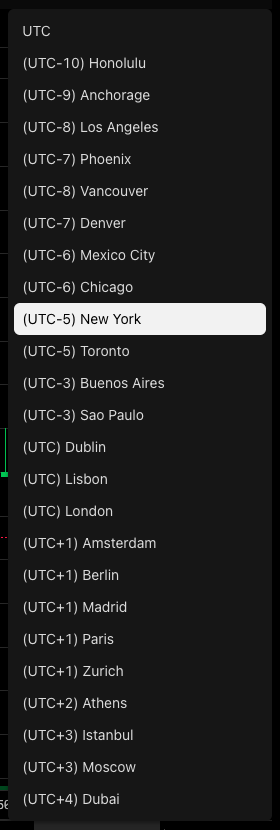
The zone applies to every chart: the time axis, the crosshair and each bottom-bar clock. It’s the same setting as Settings → Charts → Chart timezone — change either and the other follows. Daily (1D) bars keep their calendar date.
Was this article helpful?
Related articles
- The chart windowThe toolbar, timeframes, the legend, the bottom bar and the drawing rail — where everything on a chart lives.
- Chart settingsCandle colors, the legend, price lines and the countdown, the canvas, and chart trading — the five tabs of the settings dialog.
- Account preferencesMax loss, starting balance, default latency and chart timezone.