
Move, lock and remove drawings
Select a drawing to restyle it, drag it by its body, lock it against edits, and clear the chart safely.
Select and restyle
Click a drawing to select it. A toolbar appears above the chart:

- Save as the default style
- Color
- Width
- Line style
- All settings
- Lock
- Remove
| Button | Does |
|---|---|
| ⠿ | Drag the toolbar out of the way |
| Templates | Save Drawing Template As… makes this drawing’s style the default for its tool; Apply Default Drawing Template resets it to that default |
| Line color · Text color | Colors |
| Line width · Line style | 1–4 px; solid, dashed, dotted |
| Settings | The full settings dialog |
| Lock | Freezes this drawing |
| Remove | Deletes it (greyed out while locked) |
| More | Visibility on intervals, Hide |
Double-click a drawing for its settings dialog — or, on a text tool, to edit the text. Right-click it for Clone, Hide, Settings…, Lock and Remove.
Move
- Drag a handle to move one point.
- Drag the body to move the whole drawing. It moves in whole bars, so it lands on the bars you dragged it over even across a gap in the tape. The chart holds still underneath while you drag.
- Press Esc mid-drag to put it back where it was.
Lock
A locked drawing can’t be dragged or deleted by accident, and its settings dialog stays closed to edits until you unlock it from the toolbar. Delete, the toolbar’s Remove and the rail’s remove-all all leave it alone and say so.
The rail’s Lock drawings button locks the whole chart: no new drawings and no deletes until you unlock it.
Hide
The rail’s hide button hides every drawing. Its arrow narrows that down: Hide drawings, Hide indicators, Hide positions and orders, Hide all, or Show hidden drawings.
Remove
The rail’s remove button clears the chart. Its arrow says exactly what it’s about to take:
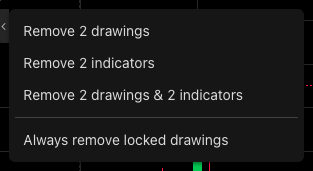
- Remove N drawings, Remove N indicators, or Remove N drawings & M indicators.
- Always remove locked drawings — turn it on and remove-all takes locked drawings too. It’s the only way past a lock.
Was this article helpful?
Related articles
- Drawing tools84 tools in six groups on the rail — how to find one, place it, and where to go next.
- Drawing hotkeys, magnet and favoritesArm the common tools from the keyboard, snap anchors to the bars, and keep the tools you use on a strip.
- Drawings follow the symbolA drawing belongs to the ticker, not the day — where it's kept, and how it reaches your other devices.