
Updated
Chart settings
Candle colors, the legend, price lines and the countdown, the canvas, and chart trading — the five tabs of the settings dialog.
Click ⚙ in the chart toolbar. Every change previews on the chart while the dialog is open; Ok keeps it, Cancel puts it back. Settings belong to that chart window.
The tabs
| Tab | What’s in it |
|---|---|
| Symbol | Candle body, borders and wick — each on or off, with up and down colors. Price precision. |
| Status line | What the legend prints: title, market status, OHLC values, bar change, volume, indicator titles, inputs and values, and its background. |
| Scales and lines | Price scale on the right or left, price lines, the countdown, and time-axis format. |
| Canvas | Background, grid lines, crosshair, scale text and lines, and top, bottom and right margins. |
| Trading | Chart trading switches and what’s drawn for your orders. |
Price lines and the countdown
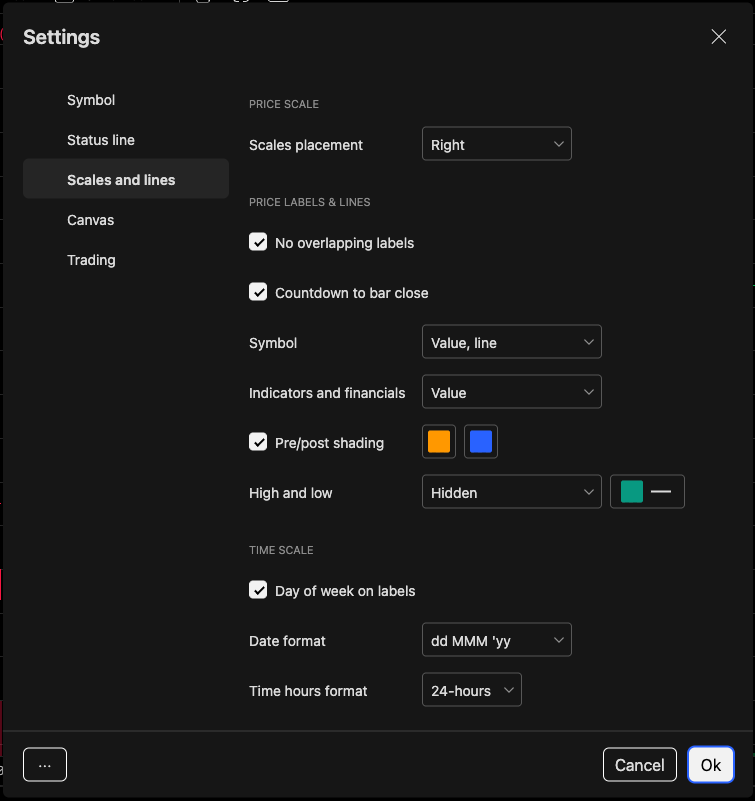
- Price scale on the right or left
- Countdown to the bar close
- Last price line
- Session high and low lines
| Setting | Default | Draws |
|---|---|---|
| Countdown to bar close | On | Time left in the current bar, under the last price. It runs on the replay clock. |
| Symbol | Value, line | The last price |
| High and low | Hidden | The session high and low |
| Bid and ask | Line | The inside bid and ask — forex, gold and silver, and futures only |
Each price line can be Hidden, Value (a label on the scale), Line, or Value, line.
Pre/post shading tints the premarket and after-hours bars on stocks. Time Scale sets the day of week on labels, the date format, and 12- or 24-hour time.
Percent and log scales aren’t in the dialog — they’re the % and log buttons on the bottom bar.
Trading
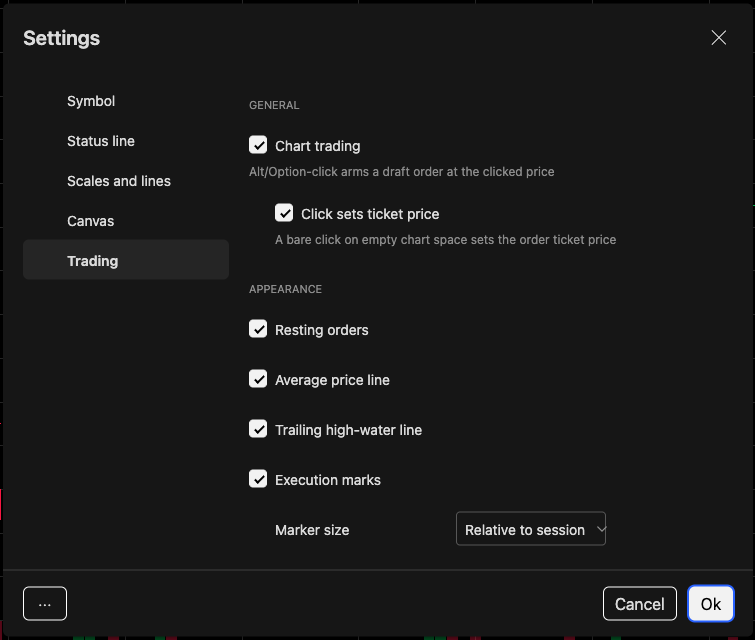
- Chart trading
- Click sets ticket price
- Chart trading — Option/Alt-click arms a draft order at the clicked price.
- Click sets ticket price — a plain click on empty chart space loads the ticket.
- Appearance — resting orders, the average price line, the trailing high-water line, execution marks, and marker size (relative to the session, or fixed share counts).
See Trade from the chart.
Defaults
The ⋯ button in the footer:
- Save as default keeps what’s in the dialog as your default.
- Apply defaults loads your saved default onto this chart (the factory settings if you haven’t saved one).
- Reset to default forgets your saved default and applies the factory settings.
Was this article helpful?
Related articles
- The chart windowThe toolbar, timeframes, the legend, the bottom bar and the drawing rail — where everything on a chart lives.
- Ranges, scales and time zoneThe chart's bottom bar — jump to a range, switch to percent or log, follow the tape, and pick the time zone.
- Read the legendThe values under your crosshair, one row per indicator, and the buttons that hide, edit and remove each one.